The tour
One meeting, from sign-up sheet to Best Speaker.
Six stops. The drawings are tappable, so go ahead and press things. The Ah-Counter isn't listening.
Step 1
Claim a role in one tap.
Members open the meeting link, pick their name, and tap the role they want. No account to make and no password to remember.
Open roles are the ones with a button. Try one.
- ToastmasterRuns the meeting
- Speaker 25–7 min
- Evaluator 1Evaluates a speech
- TakenAh-CounterMarcus Lee
Step 2
The agenda writes itself.
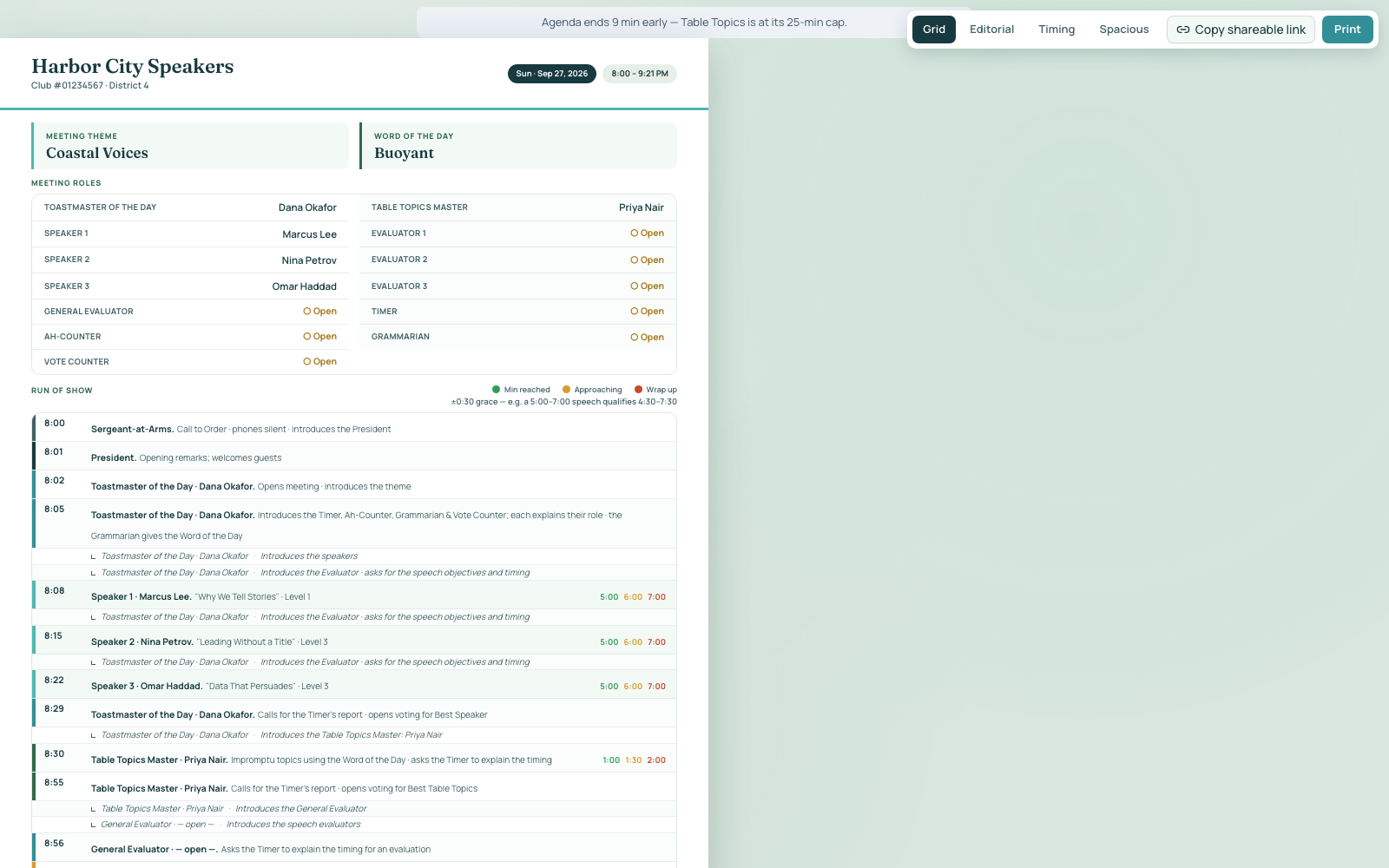
Every role a member claims lands on the printed agenda: speakers, evaluators, the Timer, all of it. When someone swaps out on Monday night, the agenda already knows.
That picture is the real print page, not a mock-up.
Step 3
Put it on the screen.
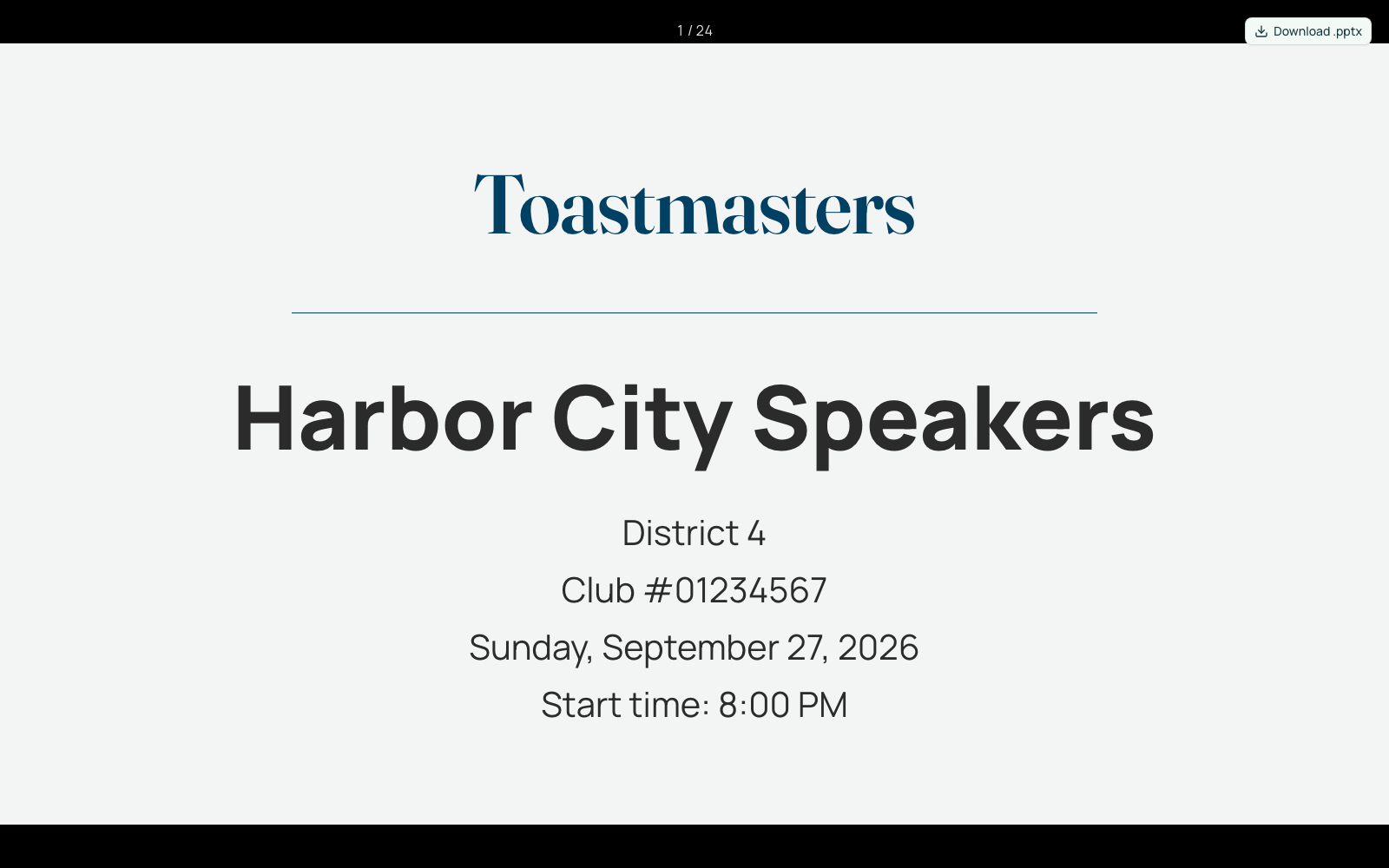
The same agenda turns into slides for the projector, one tap from the meeting page. Need it in PowerPoint? Download it.
Open it before the meeting and it keeps working when the room's Wi-Fi doesn't.
Step 4
Run the room.
The Timer gets a stopwatch on their phone with this meeting's own green, yellow and red. When it's time for Best Speaker, everyone votes from their seat and the counter sees the tally.
Tap the light to cycle it, then cast a vote.
Off. Tap to show green.
Step 5
Between meetings, the officers' view.
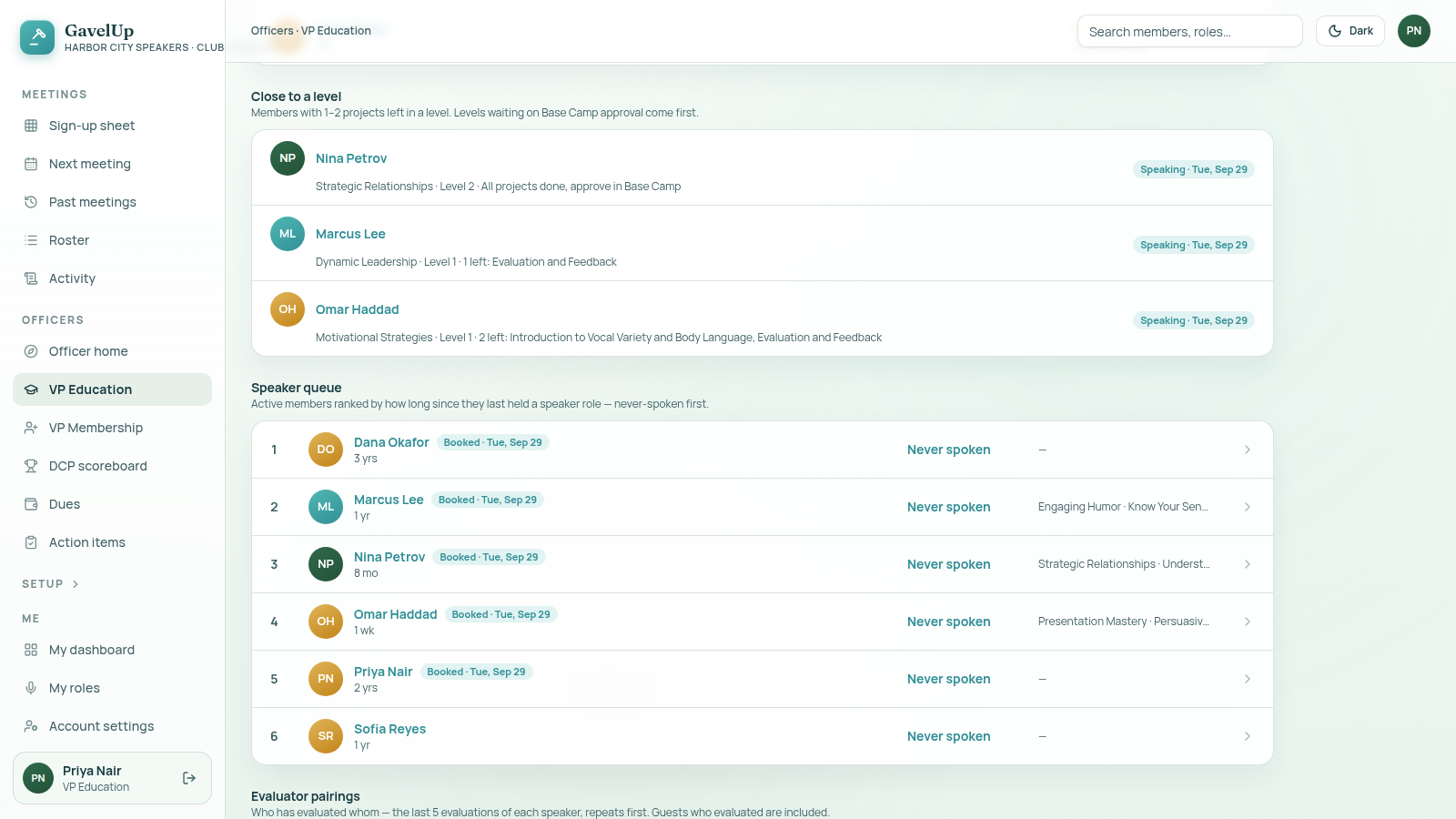
Your VP Education sees who is one or two projects from finishing a level, and whether they already have a speaking slot to do it in.
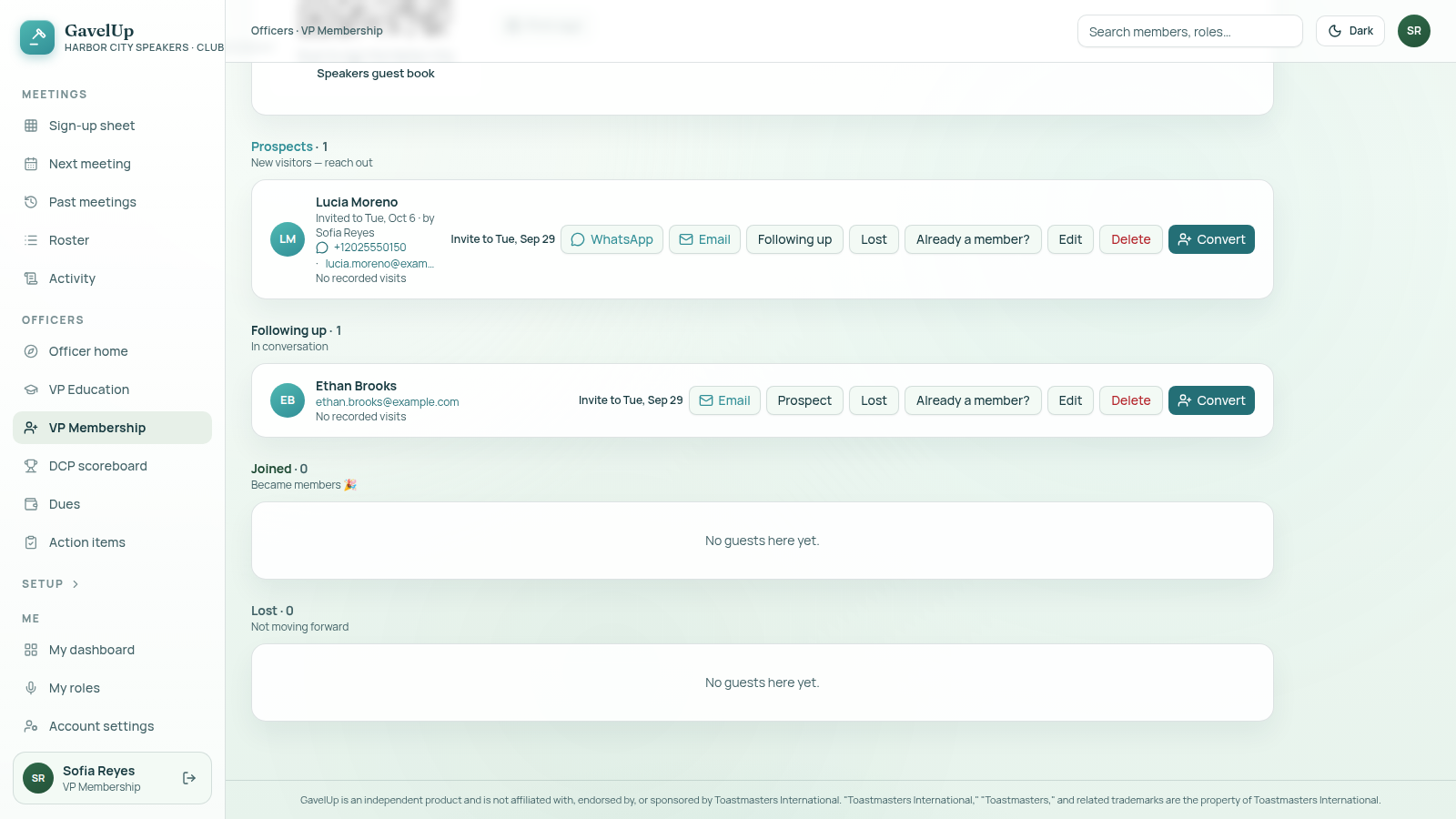
Your VP Membership sees every guest who has visited, and drafts an invite to the next meeting in one tap. GavelUp writes the draft. You send it.
Step 6
Works with your AI assistant.Beta
Connect your assistant and ask it in plain words: fill a role, show Thursday's agenda, add the guests from tonight's guest book.
For club officers. Tested with Claude: add GavelUp as a connector in claude.ai, then sign in to approve it.
Free for clubs during the pilot. Running a district? Ask us about it.
GavelUp is built by Rasheed Bustamam, a Toastmaster since 2012 and a Distinguished Toastmaster (DTM). More about GavelUp →